
Productivity
Which Apps Use the Most Disk Space on Windows? (And Why Settings Under-Reports It)
Windows Settings shows what an installer reported, not what an app really uses. Here is how to see an app's true footprint — program plus data — and uninstall what you do not need.
When the C: drive fills up, the first place most people check is Settings › Apps › Installed apps, sorted by size. It is a good start, and it is often wrong.
Why the size in Settings is unreliable
For many traditional desktop apps, the size in Settings is based on a number the installer wrote into the registry when the app was installed. That number:
- is missing for many apps, so they show no size at all;
- is stale: it does not grow when the app updates itself;
- ignores app data: caches, downloads, logs and old versions that the app keeps under
%APPDATA%,%LOCALAPPDATA%and%PROGRAMDATA%.
That last point matters most. Modern apps often keep more data than program files.
Real examples: program vs. data
Measured on one Windows laptop in October 2026:
| App | Program files | App data | Real total |
|---|---|---|---|
| Visual Studio Code | 0.44 GB | 1.9 GB | 2.4 GB |
| Wondershare Filmora | 0.8 GB | 1.7 GB | 2.5 GB |
| Microsoft Teams | 0.36 GB | 1.1 GB | 1.4 GB |
| Discord | 0.5 GB | 0.34 GB | 0.9 GB |
| Visual Studio Community 2022 | 5.9 GB | — | 5.9 GB |
For VS Code and Teams, the data is three to four times larger than the program. Filmora’s figure is only its main data folder. Its separate render-preview cache added another 7.5 GB, which only shows up when you look at caches.

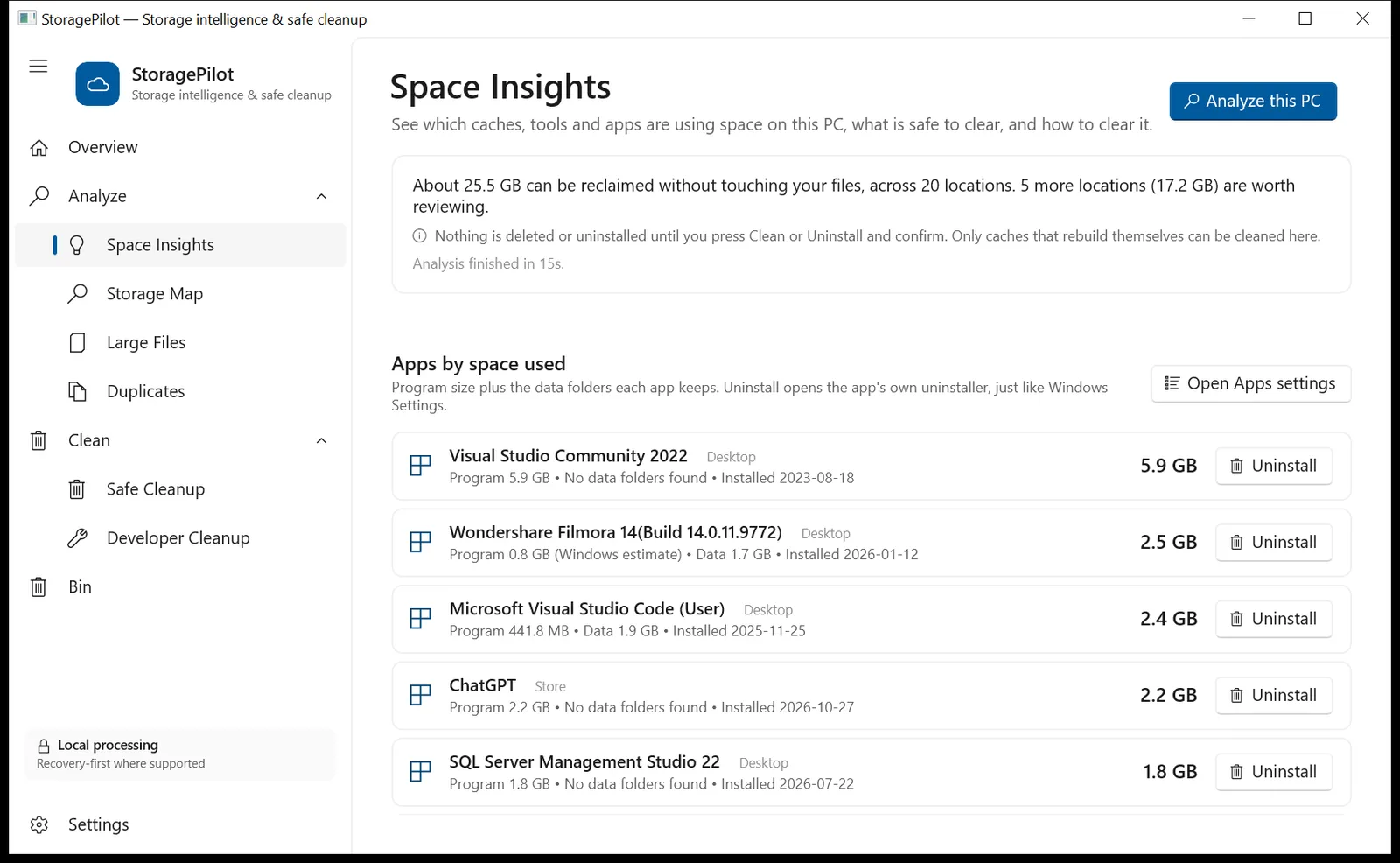
StoragePilot lists each installed app with program size plus the data folders it keeps.
How to measure an app’s real size yourself
- Find the install folder: right-click the app’s Start-menu shortcut › Open file location, and repeat until you reach the program folder. Check its size in Properties.
- Look for the app’s folders in
%APPDATA%,%LOCALAPPDATA%and%PROGRAMDATA%(paste each into the Explorer address bar). Folders are usually named after the app or its publisher. - Microsoft Store apps keep their data in
%LOCALAPPDATA%\Packages\<app name>_<id>. - Add them up.
This works, but it is slow, and publisher folders such as “Microsoft” or “Google” are shared by many apps, so you have to be careful about what belongs to what.
Uninstall the right way
Once you know what an app really costs, uninstalling the ones you do not use is usually the biggest single win. On the laptop above, removing a second Visual Studio installation, an Android emulator and unused editors freed more than 20 GB.
Do it through Windows:
- Settings › Apps › Installed apps › … › Uninstall runs the app’s own uninstaller, which removes its files, shortcuts and registry entries properly.
- Do not delete the program folder by hand. Windows keeps listing the app, its services and file associations stay behind, and future installs can fail.
- Check the data folders afterwards. Many uninstallers deliberately keep settings and caches in AppData in case you reinstall. If you are sure you will not, delete those folders yourself.
- Be careful with runtimes, SDKs and drivers (Visual C++ Redistributables, .NET, Java, WebView2). Other programs depend on them even though you never open them.
Do it in one view with StoragePilot
StoragePilot is a free Windows app from NBOUND.IN. Its Apps by space used list shows, for every desktop and Microsoft Store app:
- the measured program size (falling back to the Windows estimate only when the folder cannot be found);
- the data folders it keeps, with their sizes;
- the install date;
- an Uninstall button that opens the app’s own uninstaller, exactly as Settings does, after a confirmation that warns you when the app is a shared runtime.
Store apps are removed for your account after the same confirmation. StoragePilot never deletes program folders itself.
For everything else using your disk, such as caches, developer tools and Windows system files, see How to free up space on the C: drive safely and Developer caches eating your disk.
StoragePilot is an NBOUND.IN project. App sizes come from one real Windows laptop measured in October 2026; your apps will differ.