
Guides
How to Free Up Space on the C: Drive in Windows 11 and 10 — Safely
A real Windows laptop went from 0.6 GB free to 34 GB free. Here is exactly where the space was, what was safe to remove, and what must never be deleted.
A full C: drive is one of the most common Windows problems, and one of the easiest to make worse. Delete the wrong folder and an app stops starting, Windows Update breaks, or a project stops building.
This guide follows a real cleanup on a developer’s Windows laptop with a 238 GB system drive. When we started, it had 0.6 GB free. By the end it had 34 GB free, and nothing personal was deleted. Every number below comes from that machine.
Step 1: Find out what is actually using the space
Guessing is how people delete the wrong things. Start by measuring.
On this laptop, the system drive broke down like this:
| Location | Size |
|---|---|
C:\Users (mostly the user’s AppData) |
92 GB |
C:\Program Files + Program Files (x86) |
55 GB |
C:\Windows |
35 GB |
pagefile.sys + hiberfil.sys (drive root) |
21 GB |
C:\ProgramData |
14 GB |
Two things stand out. First, AppData alone was 64 GB: that is where apps keep caches, downloads and old versions, and it is hidden by default. Second, about 21 GB sat in two system files at the root of the drive that File Explorer does not show unless you enable hidden and protected files.
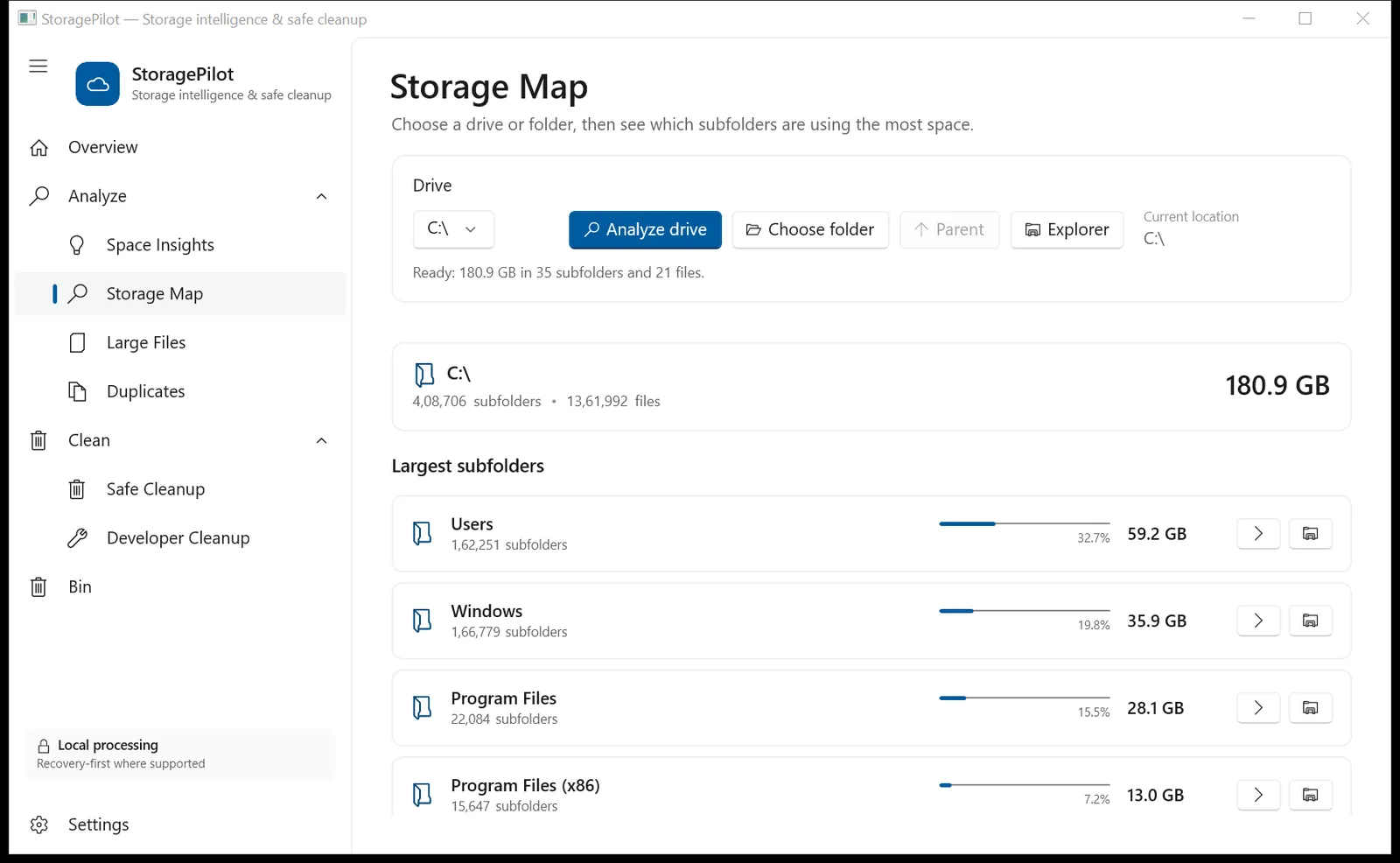
Storage Map in StoragePilot shows each folder’s real recursive size, including the system files at the drive root.
You can do this measurement with any disk analyzer. The important part is to look at recursive folder sizes, not just the files sitting directly in a folder.
Step 2: Clear what rebuilds itself
Caches exist to make things faster. Deleting them is safe because the app downloads or regenerates them when needed. The cost is a slower first launch or a re-download.
On this machine, the safe and re-downloadable caches added up to more than 30 GB:
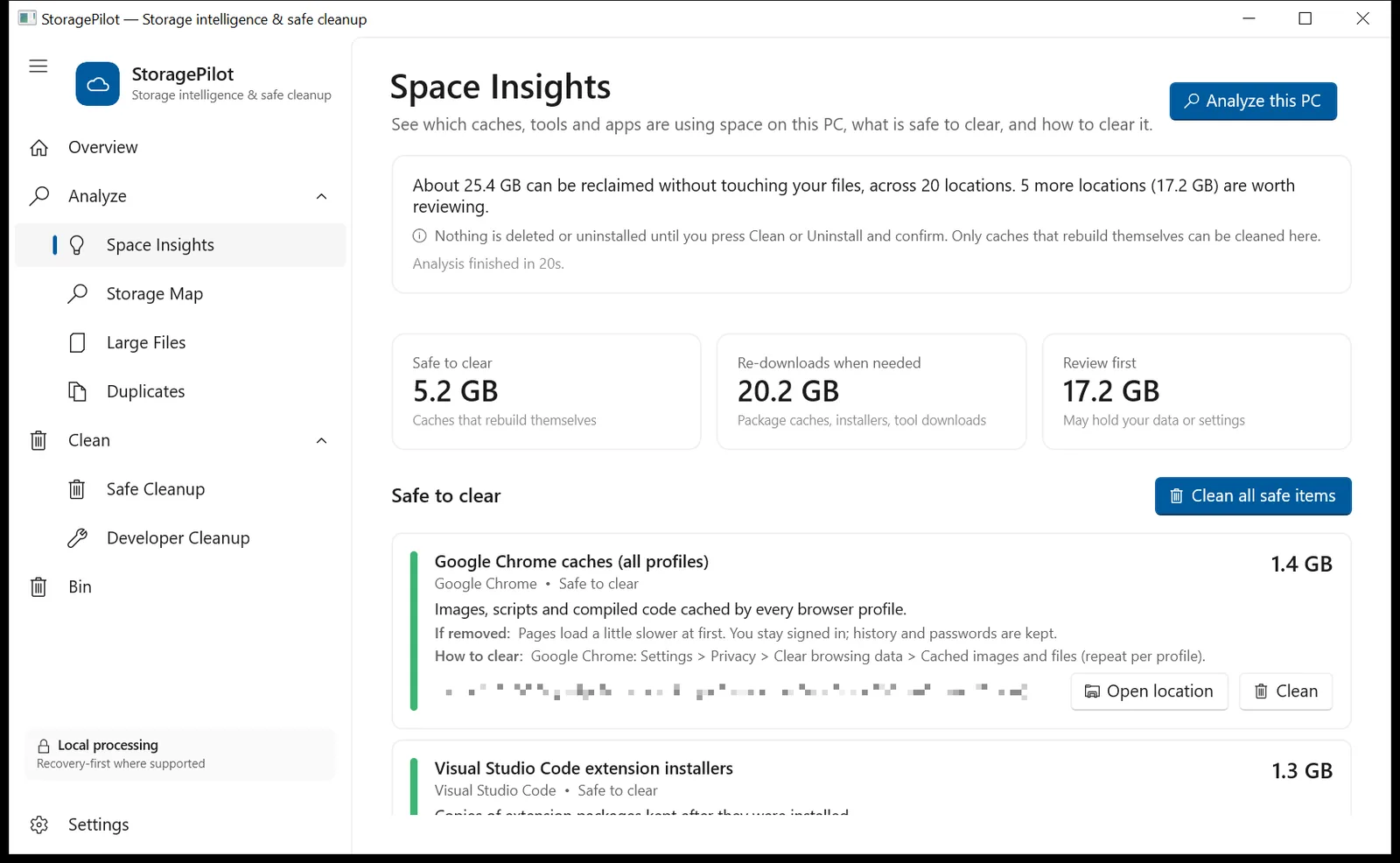
- Browser caches across all profiles: 1.8 GB. Chrome keeps a separate cache for every profile, and this PC had nine.
- Video editor render previews: 7.5 GB. Filmora’s preview renders are regenerated when you play the timeline. Your projects and exports are not touched.
- Visual Studio installer package cache: 8.9 GB. These are copies of every component installer ever downloaded. Visual Studio downloads them again if you repair or modify it.
- Developer package caches: about 14 GB from Gradle, NuGet, npm, pip, Playwright, Cypress, Puppeteer and Flutter. We cover these in detail in Developer caches eating your disk.
- VS Code extension installers: 1.3 GB. These are copies of extensions you already installed.
Windows’ own tools handle part of this:
- Settings › System › Storage › Temporary files: Windows Update leftovers, thumbnails, error reports and the DirectX shader cache.
- Disk Cleanup › Clean up system files: the classic tool, which still finds Windows Update cleanup.
- Storage Sense: run temporary-file clean-up on a schedule.
What Windows does not do is clean caches that apps and developer tools keep inside AppData. That is where most of this laptop’s space was.

StoragePilot’s Space Insights sorts every location into Safe to clear, Re-downloads when needed and Review first, and explains what each item is and what happens if it is removed.
Step 3: Review the big items that hold your data
Some large folders are not caches; they contain things you made or chose:
- Game data. One Minecraft installation held 8 GB, including 2.3 GB of replay recordings and 1.7 GB of world backups.
- Downloads. Old installers and archives pile up here.
- Emulator images and virtual disks. Android emulators, Docker and WSL disks grow and never shrink by themselves.
None of these should be deleted by a tool on your behalf. Look inside, keep what matters, and remove the rest yourself.
Step 4: Uninstall apps you no longer use, and check their real size
Uninstalling unused apps was the biggest single win on this laptop: a second copy of Visual Studio (12.5 GB freed once its shared components went too), an Android emulator (2.7 GB), unused code editors and their data, and outdated Azure tools.
Be aware that Settings › Apps often under-reports app size. It shows what the installer recorded, which is frequently stale or missing, and it ignores the data the app keeps in AppData. VS Code, for example, was a 0.4 GB program carrying 1.9 GB of data. More on this in Which apps use the most disk space on Windows?
Step 5: Understand the Windows files you must not delete
Some of the largest files on any PC belong to Windows itself:
pagefile.sys(17.4 GB here) is virtual memory. Never delete it. If it is huge, you can resize it under System › Advanced system settings › Performance › Advanced › Virtual memory, but too small a page file causes crashes.hiberfil.sys(3.2 GB here) stores memory for hibernate and Fast Startup. If you never hibernate, runpowercfg /hibernate offfrom an administrator terminal. To keep Fast Startup but shrink the file, usepowercfg /h /type reducedinstead.C:\Windows\WinSxS(about 10 GB) is the component store. Explorer overstates its size because many files are hard links. Never delete files here. RunDISM /Online /Cleanup-Image /StartComponentCleanupas administrator to remove superseded components safely.C:\Windows\Installerholds copies of installers that Windows needs to update and uninstall programs. Leave it alone.
The result
| Change | Space recovered |
|---|---|
| Old game data and three unused game launchers | 10.1 GB |
| Android emulator, unused editors’ data, unused Store apps | 10.4 GB |
| Second Visual Studio installation (with its shared components) | 12.5 GB |
| Outdated Azure tools | 0.5 GB |
| Free space | 0.6 GB → 34.1 GB |
Another 25 GB of safe and re-downloadable caches was still available afterwards for the next round.
A faster way to do steps 1–3
We built StoragePilot after doing this cleanup by hand. It is a free Windows app from NBOUND.IN that:
- measures well-known cache, app and system locations in about a minute;
- labels each one Safe to clear, Re-downloads when needed, Review first or Leave alone;
- explains what each item is, what happens if it is removed, and how to clear it yourself;
- cleans only caches that rebuild themselves, and only after you confirm.
It runs locally, has no account and sends nothing anywhere. Download the StoragePilot beta and see where your space went.
StoragePilot is an NBOUND.IN project. Numbers in this article come from a single real Windows 10 laptop measured in October 2026; your results will differ.